Welcome to your Vault Warden documentation
Follow the quick steps below to create an account, sign in, and connect Bitwarden clients and browser extensions to Vault Warden.
1. Sign up (first time)
- Open the vault URL in your browser: https://vault.depressionslair.com
- Choose Create Account (or similar) on the web UI.
- Enter your email, a strong master password, and any required information. Save a secure backup of your recovery code if shown.
2. Sign in
- Open the vault URL and click Log in.
- Enter your email and master password.
- If your server requires it, enter a 2FA code (TOTP) or use your configured second factor.
3. Browser Extensions
Install official Bitwarden extensions and point them to your vault.
- Chrome / Edge / Firefox / Safari extensions (official)
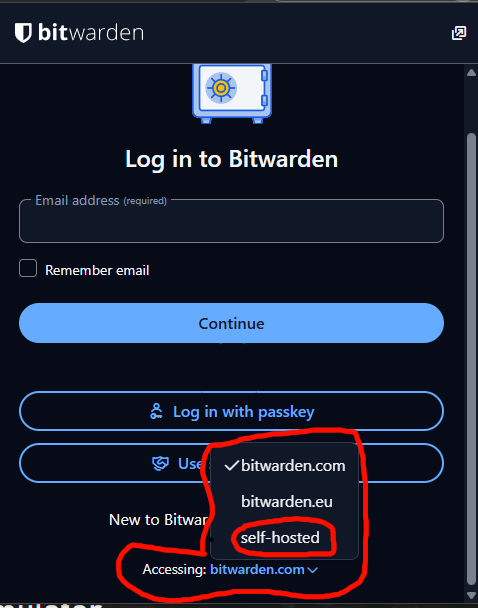
- After install: open extension > Accessing: > self hosted — set to
https://vault.depressionslair.com. - Sign in using your vault credentials from step 1.
Browser extension — step-by-step
Below are step-by-step instructions for common browsers.
Chrome / Edge
- Install the Bitwarden extension from the Chrome Web Store / Edge Add-ons.
- Click the Bitwarden icon in your toolbar.
- Open Accessing: > self hosted.
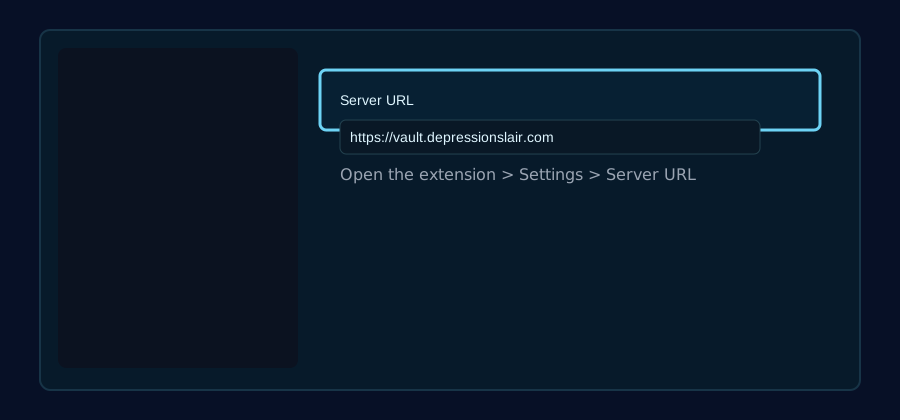
- Find Server URL or Server field and enter
https://vault.depressionslair.com. - Save and sign in with your account.
Firefox
- Install the Bitwarden add-on from Mozilla Add-ons.
- Go to Accessing: > self hosted.
- Set the Server URL to
https://vault.depressionslair.com, save, then sign in.
Desktop apps — step-by-step
- Download and install the Bitwarden desktop app for your OS from Bitwarden Downloads.
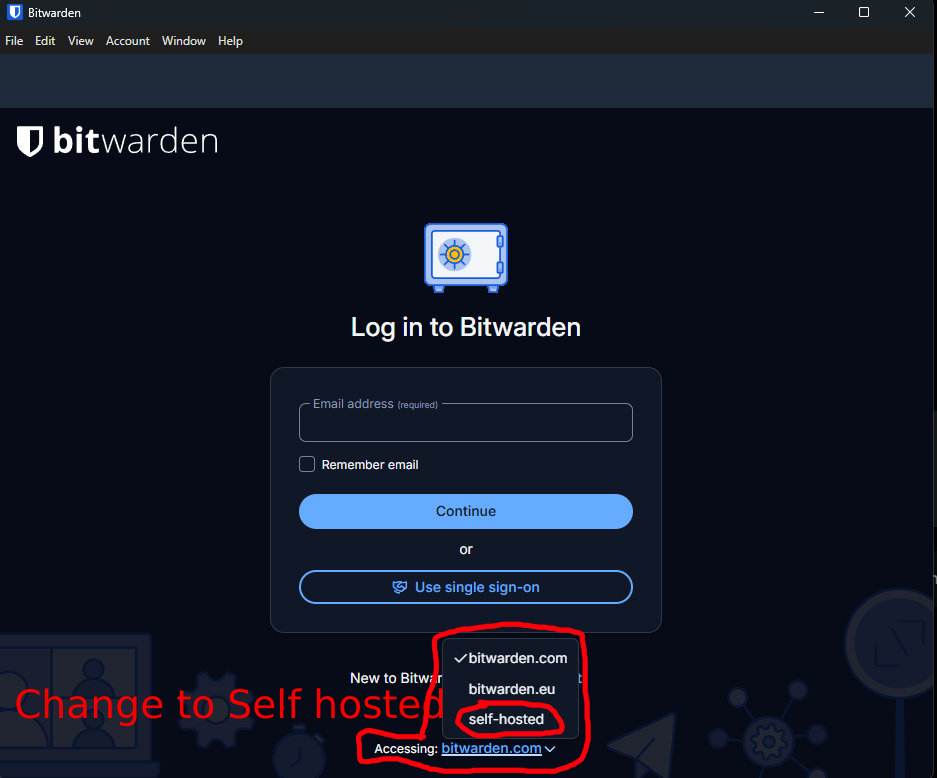
- Open the app, go to Accessing: > self hosted.
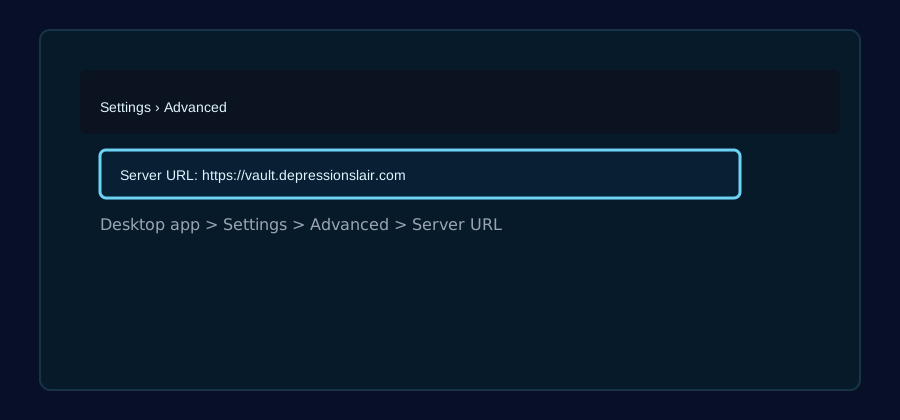
- Enter the Server URL:
https://vault.depressionslair.com. - Save and sign in using your email and master password.
Mobile apps — step-by-step (iOS & Android)
- Install the Bitwarden app from the App Store (iOS) or Google Play (Android).
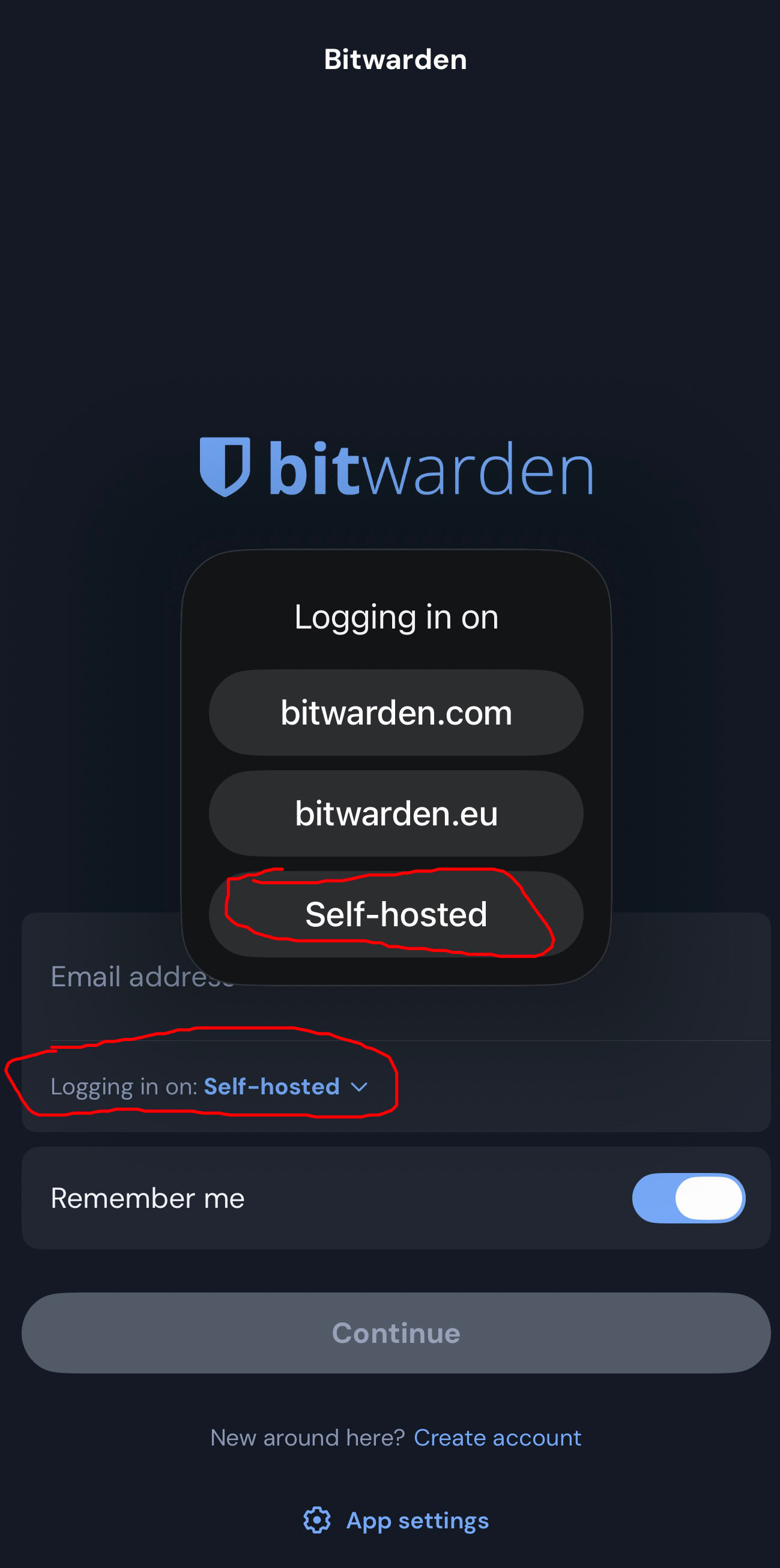
- Open the app, go to Accessing: > self hosted.
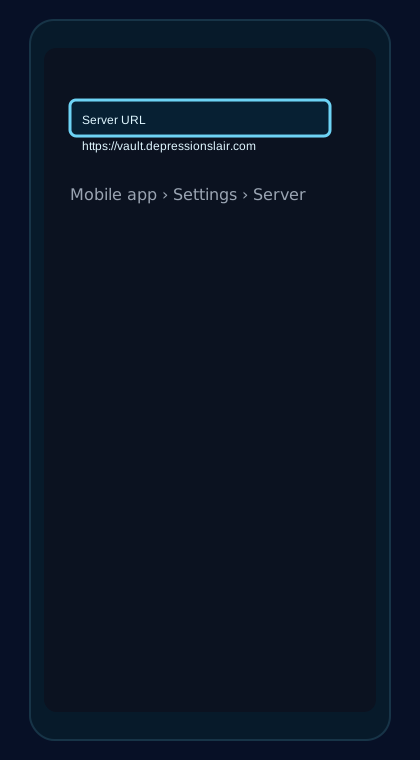
- Set the Server URL to
https://vault.depressionslair.comand save. - Sign in with your credentials and enable biometrics if desired.
Desktop Apps
Windows, macOS, Linux
- Download from Bitwarden Downloads.
- Open app > Accessing: > self hosted > Server URL set to
https://vault.depressionslair.com.
Mobile Apps
iOS & Android
- Install from the App Store or Google Play via Bitwarden Downloads.
- Open app > Accessing: > self hosted > Server URL — enter
https://vault.depressionslair.comand sign in.
Troubleshooting & Tips
- If the extension/app cannot connect, double-check the server URL and firewall rules.
- Use a strong, unique master password and enable 2FA for extra security.